Photoshop Photo Manipulation
The Ask
Use a subject to curate three different photoshop photo manipulations.
Skills
-
Using layer masks to blend images seamlessly and combine multiple elements into one cohesive design.
-
Adjusting tones, contrast, and color palettes to create a consistent and intentional visual mood.
-
Transforming or repurposing objects in an image to enhance storytelling or add artistic impact.
-
Adding dramatic effects—such as fire, glow, or particles—to elevate the intensity and visual interest of the edit.
-
Balancing colors and design elements so every part of the image feels unified, polished, and visually pleasing.
-
Blending unexpected elements or textures to create imaginative, dreamlike, or abstract visual concepts.
Ultraviolence Aesthetics
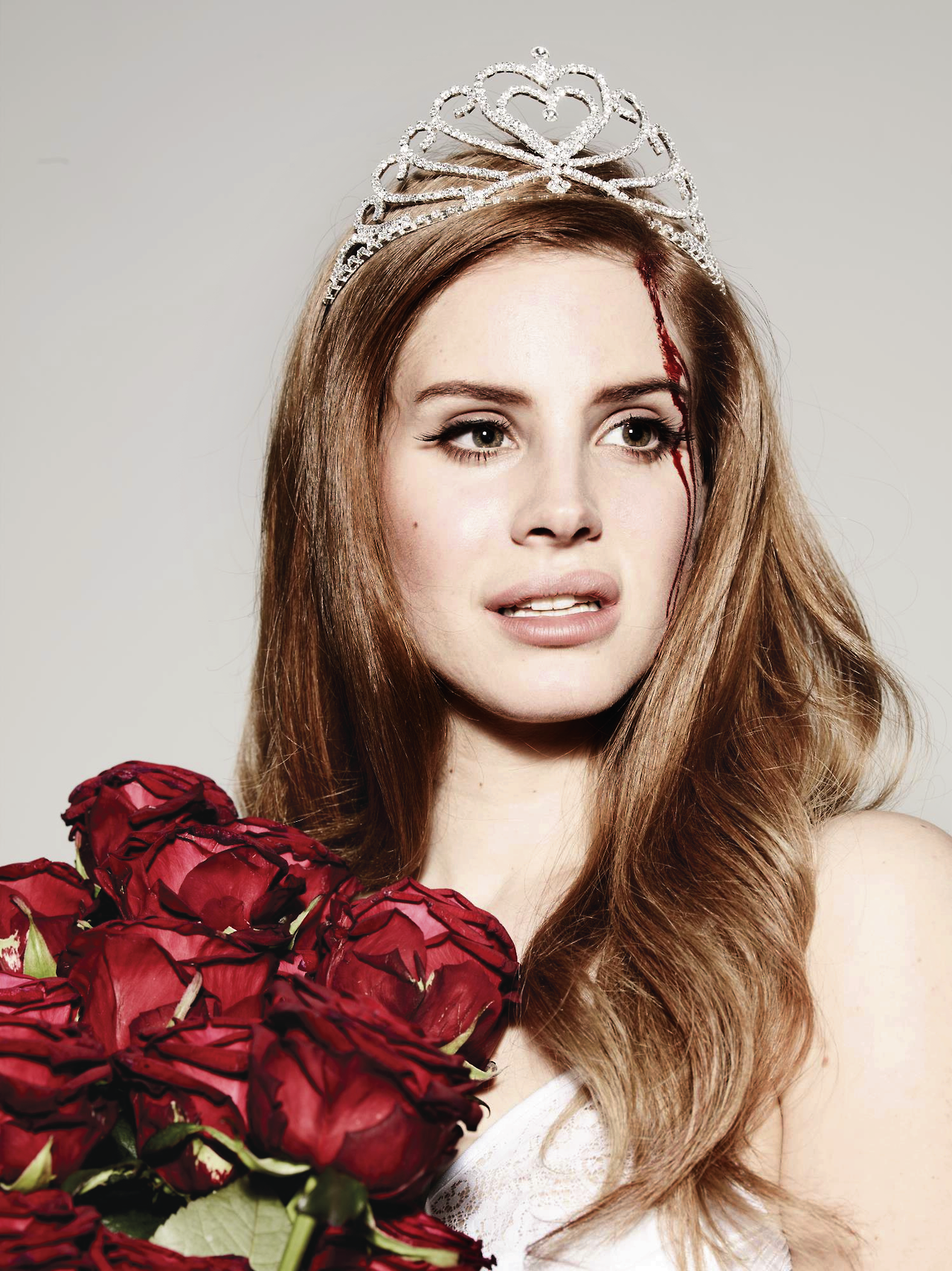
A three-image photo manipulation series inspired by Lana Del Rey’s moods — from vintage softness to neon edge to dramatic transformation. I used layer masks, color grading, texture blends, and fire/dispersion effects to create three distinct, music-driven interpretations.
Pick a high-resolution portrait of the subject. Crop and straighten; duplicate the base layer and convert a working copy to a Smart Object.
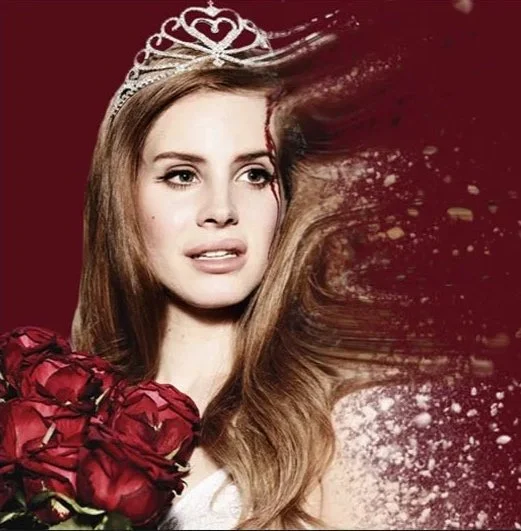
Vintage Soft
-
Add warm color grade (Camera Raw filter or Curves).
Apply subtle film grain and vignette.
Blend in texture overlays (paper/dust) with Multiply or Screen and lower opacity.
Add a slight motion/dispersion effect on one side using custom brushes + masks.
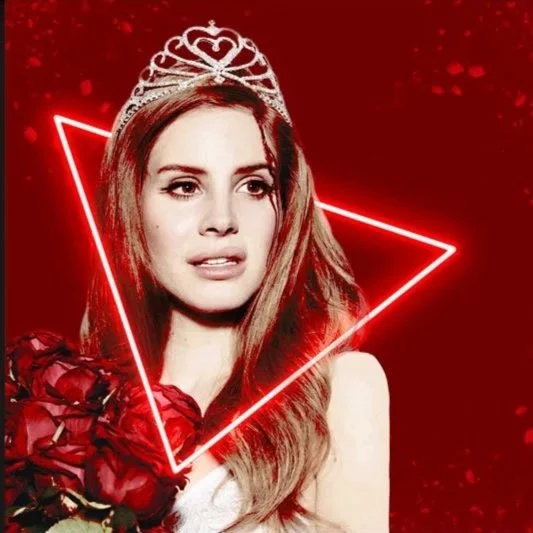
Neon Geometric
-
Create a saturated red color grade and boost contrast.
Draw neon triangle with Pen Tool on a new layer; apply Outer Glow and Gaussian Blur for bloom.
Clip color and light adjustments to subject to match neon glow (Selective Color / Color Balance).
Add small particles/spot overlays and bridge shadows to ground the subject.
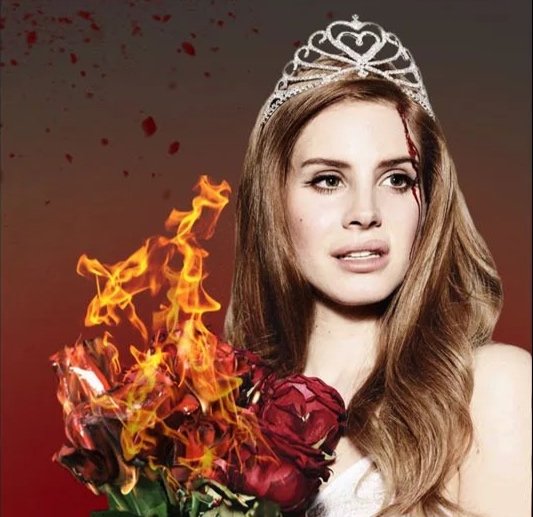
Fire & Drama
-
Replace background with a darker gradient and add subtle splatter texture.
Composite fire overlays onto bouquet using Screen or Lighten blend; mask to integrate and erase overlaps.
Paint additional shadow and reflected warm light on the subject using a soft low-opacity brush on a Multiply layer.
Add blood/tear detail subtly (separate layer, low opacity, blend with Color Burn/Overlay).
Key Tutorials
I used these three video tutorials to guide me when creating these photoshop edits.
Key Takeaway
-
Using layer masks allowed me to edit non-destructively and blend effects smoothly without damaging the original image.
-
Adjusting tones, highlights, and shadows helped me create three completely different moods even with the same subject.
-
Whether it was dispersion, neon glow, or fire, each special effect helped communicate emotion and gave the images a strong visual identity.
-
This project taught me that the tools matter, but the real transformation happens when I combine technical skills with artistic ideas.
Full Project
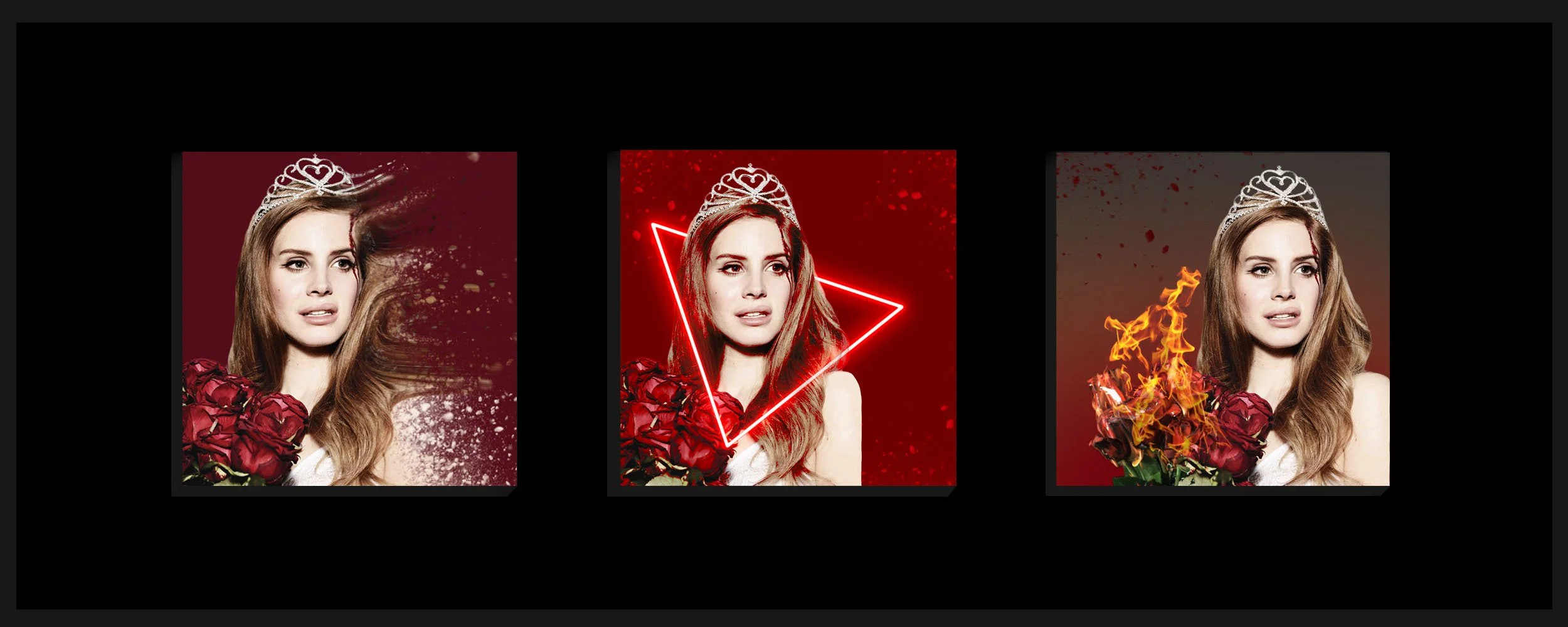
One subject, endless ways to see the story.